The journey from a brilliant digital image on your screen to a stunning physical print in your hands is a critical transition in the creative process. For artists and photographers, this step can feel fraught with technical uncertainty. Questions about resolution, color fidelity, and borders are common, yet mastering them is what separates an amateur output from a professional, gallery-ready fine art print. This guide demystifies the essential technical specifications—DPI, color space, and bleed—to ensure your digital creations are translated into prints with perfect precision and impact.
Part 1: The Foundation of Clarity – Resolution, DPI, and PPI
The sharpness and detail of your print are non-negotiable. Understanding resolution is the first and most crucial step.
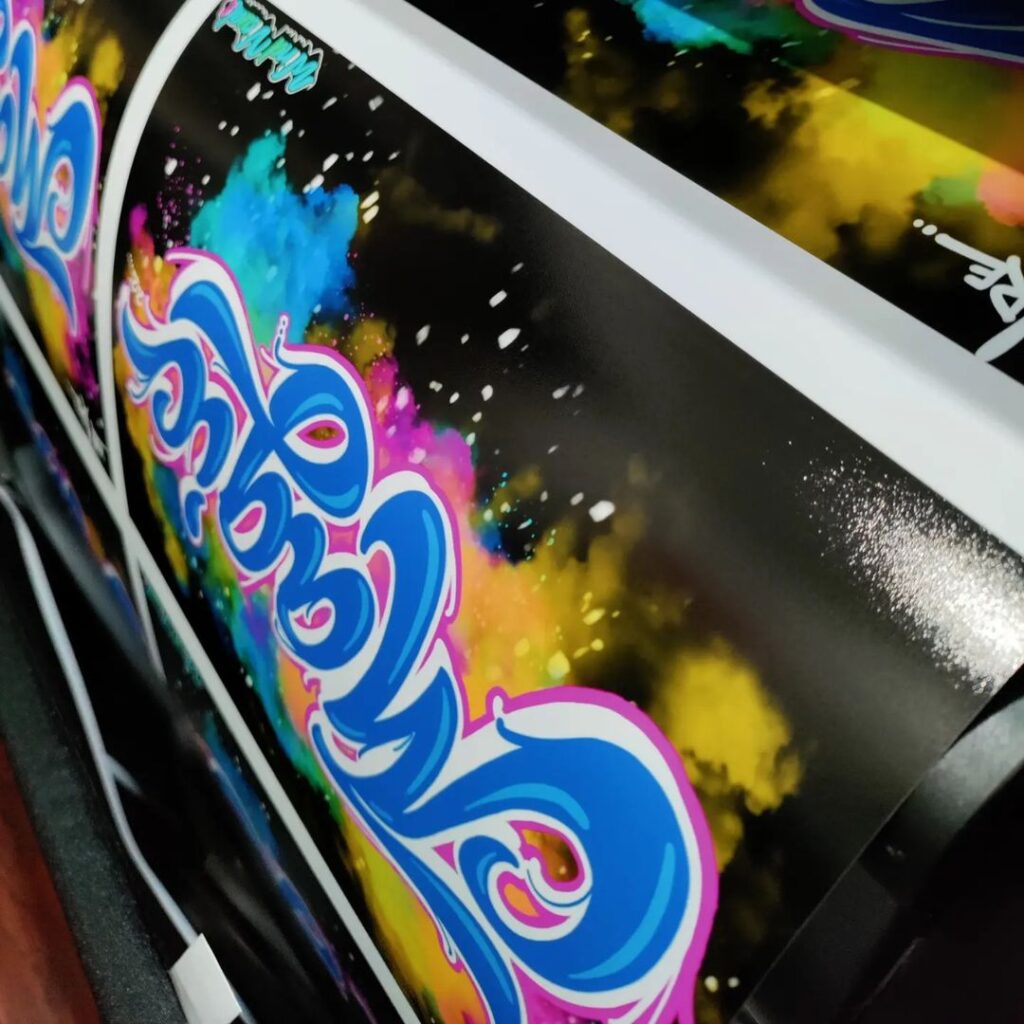
- DPI (Dots Per Inch) & PPI (Pixels Per Inch): While often used interchangeably, they refer to different things. PPI is your digital file’s metric: it measures how many pixels are packed into each inch of your image. DPI refers to the printer’s capability: the density of ink dots it can place on paper. For you, the artist, PPI is the number you control.
- The Gold Standard: For fine art printing, your file must be set to 300 PPI at its final output size. This ensures sufficient pixel density for the human eye to perceive smooth, continuous detail without visible pixelation.
- The Size vs. Resolution Trade-Off: You cannot increase the true resolution of a low-PPI image by simply raising the number in software. This is called “upsampling” and creates soft, blurry results. Always capture or create your image at the highest possible resolution from the start. To check if your file is adequate, calculate: (Width in pixels) / (PPI) = Maximum print width in inches. A 6000×4500 pixel image at 300 PPI can print beautifully at 20×15 inches.
Part 2: The Language of Color – sRGB vs. Adobe RGB
Color is emotion. Ensuring the colors that leave your screen match the colors that hit the paper is a matter of proper color space management.
- What is a Color Space? Think of it as a palette of available colors. Different palettes (spaces) contain different ranges, or gamuts, of possible colors.
- sRGB: This is the standard, smaller color space used by most web browsers, consumer monitors, and phone screens. It is a safe, universal choice but cannot reproduce the deepest cyans and vibrant oranges found in nature or high-quality prints.
- Adobe RGB: Developed to encompass more of the colors achievable on CMYK printers, this is the professional standard for print. It offers a significantly wider gamut, especially in greens and cyans. If you want your prints to have richer, more saturated colors that match what you see on a calibrated professional monitor, work in Adobe RGB.
- The Critical Workflow:
- Capture/Edit in Adobe RGB (set this in your camera and editing software).
- Soft Proof in your editing software to simulate how colors will translate to your specific printer/paper profile.
- Convert to Profile when exporting your final print file, choosing the exact ICC profile provided by your print lab. Never simply “assign” a profile.
- Embed the Profile: Always check the “Embed Color Profile” box when saving your final TIFF or JPEG. A file without an embedded profile is a guessing game for the printer.
Part 3: The Professional Finish – Understanding Bleed & Margins
Nothing undermines a professional presentation like a clumsy border. Proper setup for trim and bleed is the final mark of a prepared artist.
- Live Area: The zone where all your critical image elements and text must sit, well away from the final cut edge.
- Trim Line: The final size of your printed piece after it’s cut.
- Bleed: A minimum 3mm (0.125 inch) extension of your background image or color beyond the trim line. This accounts for microscopic shifts during the cutting process. Without bleed, you risk a sliver of unprinted white paper along the edge if the cut is off by even a hair.
- Safe Zone: A minimum 5mm (0.25 inch) margin inside the trim line where no important text or focal points should be placed. This guarantees nothing vital is lost in the binding or final trim.
Final Pre-Flight Checklist
Before you send your file, run through this list:
| Checkpoint | Requirement for Fine Art Printing |
|---|---|
| Dimensions & Resolution | Final size at 300 PPI. Dimensions in inches/cm, not just pixels. |
| Color Space | File converted to printer’s specified ICC profile (usually Adobe RGB-based). Profile is embedded. |
| File Format | TIFF (lossless, layers flattened) or high-quality JPEG (100% quality). |
| Bleed & Safe Zone | 3mm bleed added; critical content inside 5mm safe zone. |
| Proofing | Image soft-proofed for your chosen paper stock. Viewed at 100% zoom to check for dust or artifacts. |
The Final Word: Collaborate with Your Print Lab
The most important step is to view your print service as a partner. Before sending a final file for an edition, always request a physical proof. A proof allows you to see color, density, and sharpness in reality, under your lighting. It is an essential investment in perfection. By providing technically flawless files, you empower their technology to do its best work, resulting in prints that do justice to your vision.
Following this guide transforms a technical chore into a confident final step in your creative process. It ensures that the integrity, color, and impact of your work are preserved all the way from the glowing screen to the tactile, enduring surface of fine art paper.
Ready to print? Click here to being your next art print order